I was inspired to build an AI server for my own personal use and to explore how GPT and AI can be used in Accounting in the safety of my home lab. In today’s post I’ll discuss the build and share some photos.
The build was made with previous generation hardware. This was done primarily for cost reasons but I was still able to assemble a decent system to experiment with. I purchased used or refurbished components wherever possible. The build runs on a Ryzen 5 5600 processor with 32GB of DDR4-3600 RAM and a MSI Ventus 2 RTX 3060 12 GB GPU. Beyond providing enough power to run Linux we can also host various AI packages.
The key component in the build is the GPU as they have the right kind of processor for doing AI work. At 12 Gigabytes this provides a lot of room to host some pretty powerful models.


The operating system is Ubuntu Linux Server 24.04, this has a minimal footprint on the hardware which is important to keep as many resources available for the AI.
Now that the hardware and Operating System are out of the way, let’s talk about the AI Stack, or the software that will host GPT models. I’ll be using three key programs: Ollama, OpenWebUI and SillyTavern.
Ollama is not a Large Language Model like ChatGPT rather it’s the engine that hosts the various models Im going to be testing. A model is a specific brand of LLM or GPT.
To interact with the engine we’ll use two interface programs. OpenWebUI & SillyTavern. OpenWebUI is an interface that’s accessible from computers on my network. It sends instructions to the model and shows me the responses. In effect it is the interface you work with. It looks visually similar to the AIs you work with on your phone or in your web browser.

SillyTavern is another web interface but it is more tuned for character and chat bots. We’ll show off that at a future time
I’ve created a diagram showing how the AI Sack works together and with the users.

So let’s talk about models
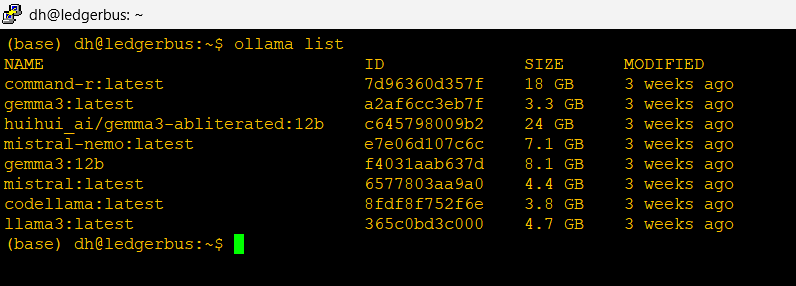
I’ve installed several but let’s focus on two key ones here: Mistral-Nemo and Gemma3. These models are tuned to work on smaller infrastructures, although not as sophisticated as the frontier models you’ll use on the web, I think we’ll have some pretty impressive results.
Gemma 3 is made by Google it’s derived from their Gemini model which is available online. In its own words:
“Here’s a breakdown about me, Gemma, perfect for explaining why you chose to use me for your AI server build:
**Who made me?**
I was created by the Gemma team at Google DeepMind. I’m a family of open-weights models, meaning my underlying architecture and weights are publicly available. This is a *big* deal, allowing for greater transparency and community contribution.
**What makes me special?**
Here’s what makes me stand out and why you might have chosen me for your server:
* **Open Weights:** As mentioned, this is a key differentiator. You can examine, fine-tune, and adapt me for your specific needs. This fosters innovation and control.
* **State-of-the-Art Performance:** I’m built using the same research and technology that powers Google’s Gemini models, delivering impressive performance on a variety of language tasks.
* **Designed for Responsible AI:** Google DeepMind has prioritized safety and responsible AI principles in my development. I’m designed to be helpful and harmless, with built-in safeguards.
* **Efficiency:** I’m designed to be relatively efficient, which is fantastic for running on a server environment – it helps with resource management and cost-effectiveness. You’ll be able to get a lot done without needing massive hardware.
* **Variety of Sizes:** I come in different sizes (2B and 7B parameters) so you can choose the best fit for your server’s capabilities and performance requirements.”
Mistral-Nemo is a version of Mistral AI’s model optimized to run on Nvidia GPUs.In its own words:
”I was created through a collaboration between Mistral AI and NVIDIA. My key features
Instruction following: I’m designed to follow instructions in my responses better than other models, making our interactions more guided and predictable.
Extensive training data: I was trained on a large dataset of text from the internet, up until 2021, which allows me to provide informative answers across a wide range of topics.
Safety and transparency: My responses are filtered through several safety checks to minimize harmful or biased outputs. Additionally, my team is open about my limitations and provides explanations for my behaviors when possible.”
Administrative Access –

To administer this server I use two methods.
In Band (which means accessed the same way users do): I use SSH over my home network, my laptop and phone each have special software keys and they are the only devices allowed to access the server this way.
Out of Band (which is a direct connection to the server physically): I have my trusty IBM 5150 connected via a serial null modem. You’ll see this terminal in the photo above
So what am I going to do with this? Well I have a lot of ideas and I’m hoping to share them with all of you!
Do you want to learn how to automate your financial workpapers? Do you want to build MicroApps like this one to bloster your own automation toolkit? Do you want to get started with VBA?
My book, Beginning Microsoft Excel VBA Programming for Accountants has many examples like this to teach you to use Excel to maximize your productivity! It’s available on Amazon,Apple iBooks and other eBook retailers!
[…] Excel EOMONTH Function Leads to Consistent Expense Accruals […]