A Simple Python Machine Learning Script to help Accountants with Account Miscoding

With all the push for AI in the workplace I was curious if I could build a small program using machine learning to perform some useful function for accountants and financial reviewers – as account miscoding came to mind I wrote a program that would predict the account coding of a payable, this could aid a reviewer in determining if the months payable are coded correctly. I made a mock general ledger in Excel and trained a small machine learning model to predict which account each transaction should belong to. If the model’s prediction doesn’t match the coded account, that’s a potential miscoding.

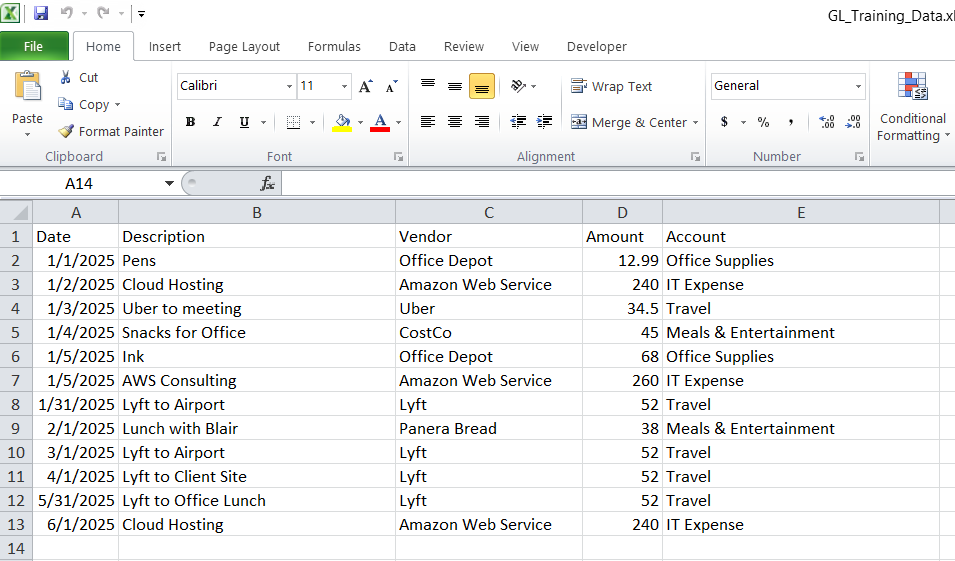
A screenshot from Excel showing a mock general ledger for training data

This model was built in Python 3.9 using Pandas, scikit learn and a couple other modules to support transforming the Excel file into a model the program can work with. 

What is Machine Learning

Machine learning is a subset of artificial intelligence that enables computers to learn and improve from experience without being explicitly programmed, by identifying patterns in data through algorithms trained on examples like labeled images or past transactions. 

It works by feeding data into models, allowing predictions on new data. You see this everyday in recommendations for movies on streaming services, filtering spam emails, or detecting fraud in banking. 

Machine learning is basically pattern recognition.

If your GL says:

  • “Office Depot – pens” → Office Supplies
  • “Printer ink” → Office Supplies
  • “AWS cloud hosting” → IT Expense
  • “Uber to client site” → Travel
  • “Lunch with client” → Meals

…then the model learns those patterns.

Give it a new transaction like:

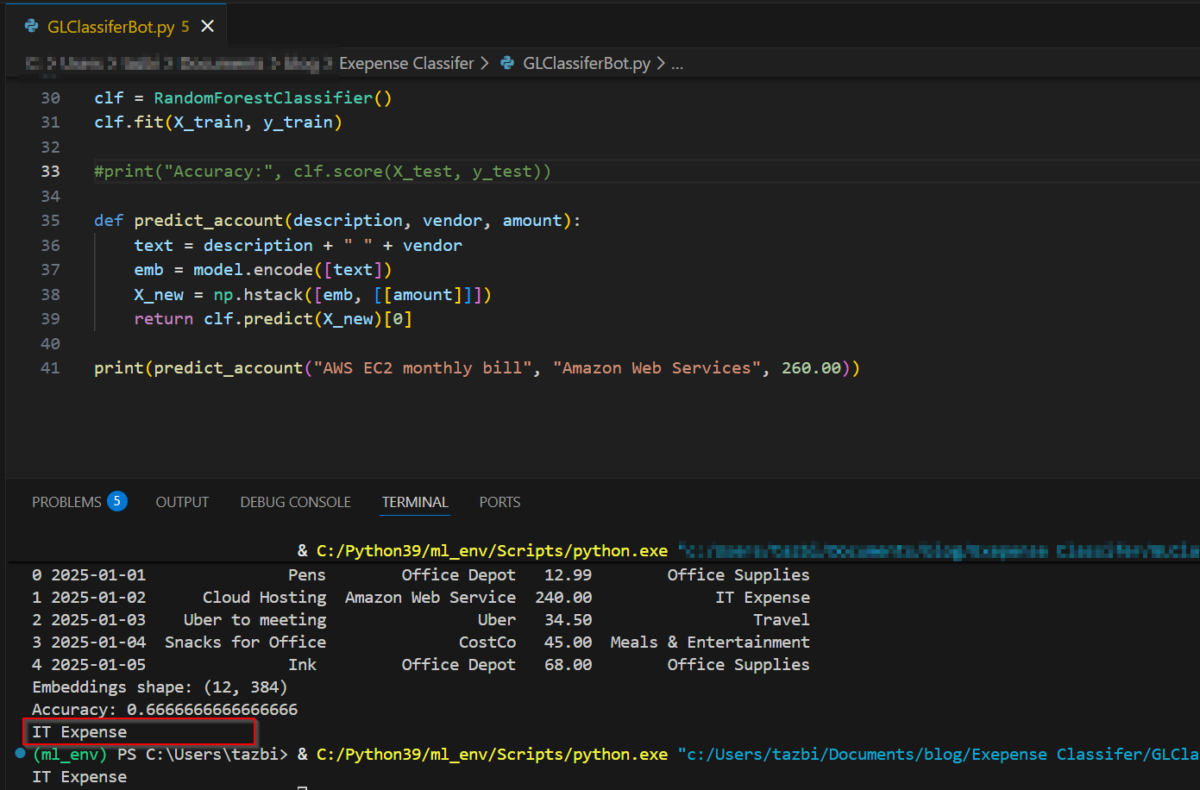
“AWS EC2 monthly bill – Amazon Web Services – $260”

and it will say:

“This looks like IT Expense.”

If the GL has it coded as something else, that’s a red flag.

Here’s the Python code:

#! python3
#GL Classifer Bot

import pandas as pd
from sentence_transformers import SentenceTransformer
import numpy as np
from sklearn.ensemble import RandomForestClassifier
from sklearn.model_selection import train_test_split

df = pd.read_excel(r"C:\GL_Training_Data.xlsx")

# Load a lightweight embedding model
model = SentenceTransformer("all-MiniLM-L6-v2")

# Combine text fields into one string
df["text"] = df["Description"].astype(str) + " " + df["Vendor"].astype(str)

# Convert text to embeddings
embeddings = model.encode(df["text"].tolist())
X = np.hstack([embeddings, df[["Amount"]].values])
y = df["Account"]

X_train, X_test, y_train, y_test = train_test_split(
    X, y, test_size=0.25, random_state=42
)

clf = RandomForestClassifier()
clf.fit(X_train, y_train)

def predict_account(description, vendor, amount):
    text = description + " " + vendor
    emb = model.encode([text])
    X_new = np.hstack([emb, [[amount]]])
    return clf.predict(X_new)[0]

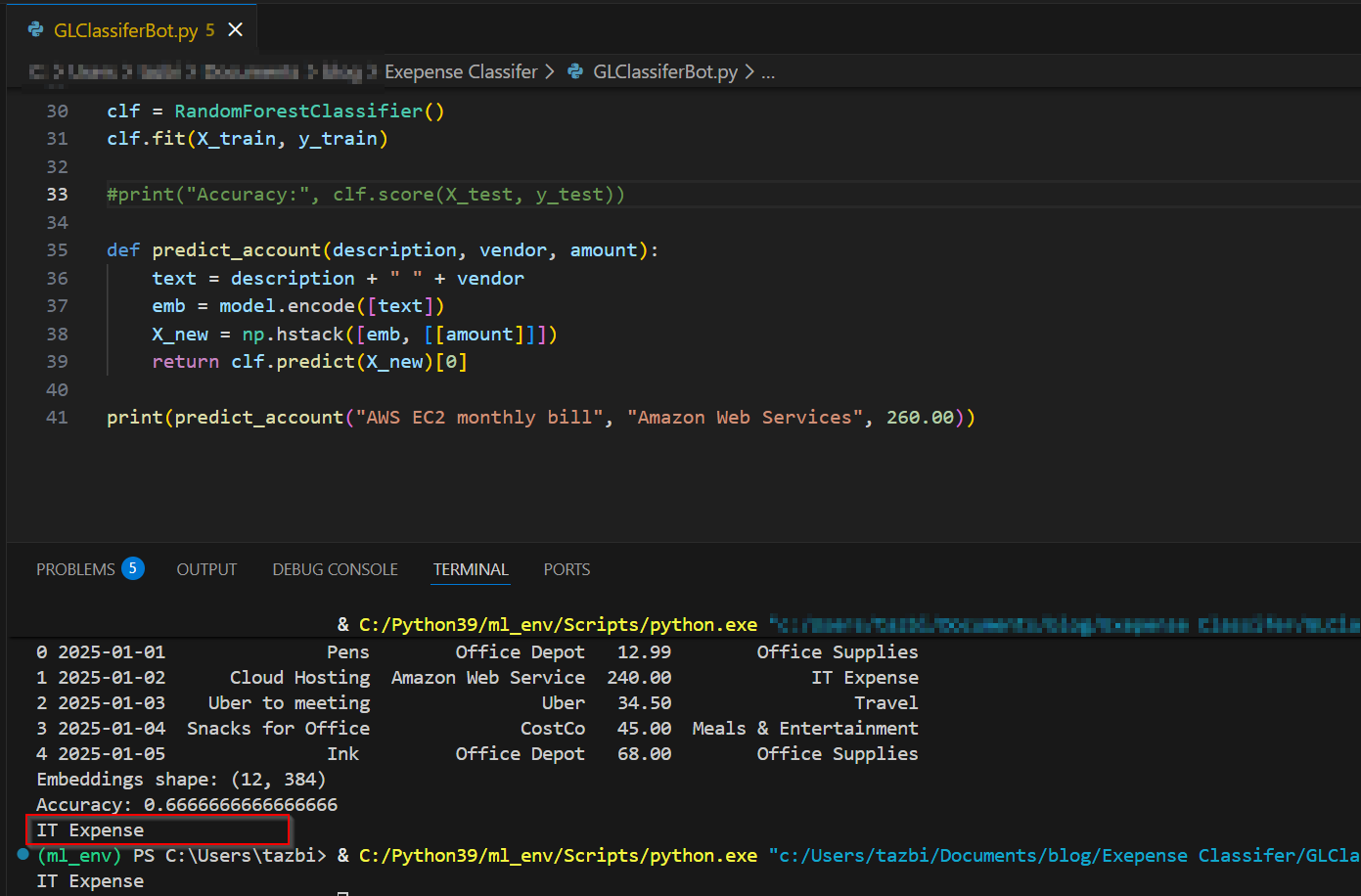
print(predict_account("AWS EC2 monthly bill", "Amazon Web Services", 260.00))

the last line feeds in a transaction and the output is it’s expected coding.

A simple walkthrough

Here’s the workflow of how the application works:

1. I loaded my GL from Excel.

Just a simple table with:

  • Date
  • Description
  • Vendor
  • Amount
  • Account

2. I converted the text into “meaning vectors.”

This sounds fancy, but it’s basically a tool that turns text like:

“Uber to client site”

into a list of numbers that represent its meaning.

3. I trained a small model to learn the patterns.

It looks at:

  • the meaning of the description
  • the vendor
  • the amount
  • the account it was coded to

…and learns how they relate.

4. I asked it to predict the account for new transactions.

If the prediction doesn’t match the coded account, I flag it.

That’s it. No deep learning, no giant datasets, no complicated math.

The output with a box drawn around the predicted account

What surprised me

When I only had 8 rows of data, the model predicted everything as “Office Supplies.”
Once I added a few more rows — it suddenly started predicting correctly.

That’s the magic of small ML models:  they don’t need much to start learning.

Why this matters for accountants

This tiny example shows how machine learning can help with:

  • miscoded expense detection
  • reclass suggestions
  • anomaly spotting
  • cleaning up messy GLs
  • speeding up month‑end review

And you can build the whole thing in under an hour.

The takeaway

Machine learning doesn’t have to be intimidating.
You can start with:

  • a tiny GL
  • a few lines of Python
  • and a simple idea:
    “Does this transaction look like the account it was coded to?”

That’s enough to demonstrate the concept — and enough to spark ideas for real‑world automation. This could easily be expanded to use a more complicated general ledger and to automatically search a general ledger under review for correct coding.

Do you want to learn how to automate your financial workpapers? Do you want to get started with VBA?

My book, Beginning Microsoft Excel VBA Programming for Accountants has many examples like this to teach you to use Excel to maximize your productivity! It’s available on Amazon, Apple iBooks and other eBook retailers!
Excel Functions for Financial Reviewers

For those of us who review accounting workbooks it’s helpful to have a few tools to make the review easier. In today’s blog post I’m going to list 3 of my favorite Excel formulas or shortcuts that improve the quality of my reviews.

View Formulas helps you remove plugs or audit formulas

Pressing control and the tilde key (i.e. CTRL + ~) will change Excel to show the formulas in each cell rather than the values. This is very helpful when reviewing workbooks to ensure there are no plug values and that the formulas are consistent have the right ranges, etc. Press CTRL + ~ to put the view back to normal

The shortcut key CTRL + ~ changes the cells to show their formula rather than the value

As you can see in the screenshot, with view formulas it’s very easy to spot formula inconsistencies.

TEXTJOIN for making lists

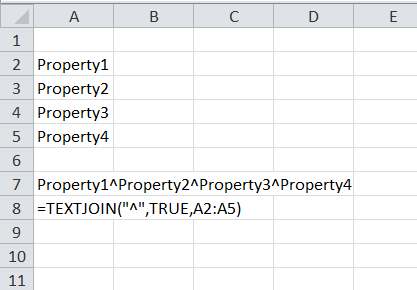
The TEXTJOIN formula allows you to create lists easily with a seperator character. This is particulatly useful in my trade for combining lists of entites to put into a filter in the accounting system. The syntax of TEXTJOIN is = TEXTJOIN (delimiter, Ignore Empty, cell range)

The delimiter is the character you want to separate the items with, it can be anything but I’ll use the carrot ^ character for this example.

Ignore Empty parameter is either TRUE of FALSE, normally you’ll use TRUE so that it doesn’t conisder any empty cells in the range.

In the screenshot below, you can see how I used the formula to easily create the list (i.e. propert1^property2^property3^property4)

TEXTJOIN makes lists quickly

SUMIFS for totaling by category

The SUMIFS formula is very handy to get a quick total. It’s syntax is

=SUMIFS(sum range, category range 1, category, [more categories])

The sum range is the values you want to add.

The category range is the labels for each value

The category is which label you want to add

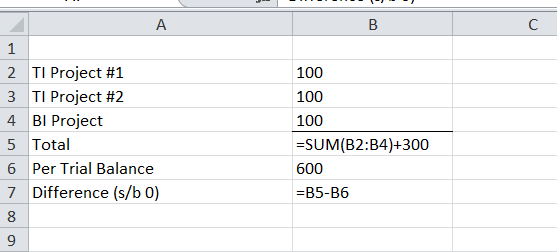
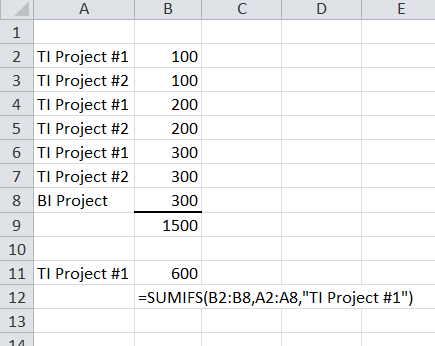
Consider this example. We have two projects TI Project #1 and #2. If we want to add TI Project #1 interdependently we can do this very easily using the SUMIFS like this:

SUMIFS can easily add up categories for your review

Although we tend to look to excel functions for preparation, even reviewers can harness the power of Excel shortcuts and formulas to make them better reviewers and help reduce or eliminate errors.

Do you want to learn how to automate your financial workpapers? Do you want to get started with VBA?

My book, Beginning Microsoft Excel VBA Programming for Accountants has many examples like this to teach you to use Excel to maximize your productivity! It’s available on Amazon, Apple iBooks and other eBook retailers!
Resources:

TEXTJOIN https://support.microsoft.com/en-us/office/textjoin-function-357b449a-ec91-49d0-80c3-0e8fc845691c

SUMIFS https://support.microsoft.com/en-us/office/sumifs-function-c9e748f5-7ea7-455d-9406-611cebce642b

Creating a Chart of Accounts from a General Ledger in Microsoft Excel using VBA

Recently I was given the task of extracting a chart of accounts (COA) from a general ledger report. There are many ways I could have done this. Using Auto Filter comes to mind. Being me, I chose to write a small program in Visual Basic for Applications (VBA). In this post I will walk you through the design and code of the program I made.

General Ledger

Design:

First we need to determine the goals for our output or in this case the chart of accounts. I needed a report with:

  • account number
  • account description

In the source file we see that the account number is in Column A and the account descriptions are in Column E. We also see that rows that begin with a number are the rows that have the account number/description. Since that’s all we need we’ll ignore everything else.

With that information we know that our solution will have to do the following:

  • find or determine the first and last rows on the source worksheet
  • examine each row in the source worksheet to see if it starts with a number
  • if it does start with a number then
  •     take the account number and
  •     take the account description and
  •     write them to the destination sheet
  •     lastly increment the row in the destination worksheet

It’s obvious that we need a loop in this case we’ll use a FOR loop to examine each row of the source worksheet. It’s also clear we’ll need an IF statement to determine if the first character of the row is a number or not.

Code:
 
Sub ExtractCOA()
 
    'This program will extract the chart of accounts from a Yardi 7
    'default General Ledger (analytics) report run to Excel 
    'Derek Harlan April 2018 - Licensed in the Public Domain 

    'Setup Object Variables for the worksheets 
    'src will be the Source worksheet 
    Dim src As Worksheet 
    'dest will be the Destination worksheet 
    Dim dest As Worksheet 
    'Setup some counter variables 
    'firstRow / lastRow will be the first and last rows of the Source workbook 
    'nextRow will be the row to write in the Destination workbook 
    'i will be the counter in the For loop 
    Dim startRow as Long 
    Dim lastRow As Long 
    Dim i As Long 
    Dim nextRow As Long 
    'Set the initial values for the variables 
    Set src = Sheets("Report1") 
    Set dest = Sheets("Sheet1") 
    startRow = 6 ' this is easy to determine so I just set it the row number 
   'Find the last row by searching the workbook from the bottom row up 
   'and assign it to the variable 
    lastRow = src.Range("A1048576").End(xlUp).Row 
    i = 0 
    nextRow = 2 'Row 1 will be the headers in the worksheet so Row 2 is where the data starts 
    'We'll loop through each row between the first and last rows of the Source workbook 
    For i = startRow To lastRow Step 1 
       'If the first character of the value of the cell in A and the current row (i) is a number then 
       'that row has the account number and name on it 
        If IsNumeric(Left(src.Range("A" & i).Value, 1)) Then 
            'set the values in the destination worksheet from the values on the 
            'current row of the source worksheet 
            dest.Range("A" & nextRow).Value = _ 
               src.Range("A" & i).Value 
            dest.Range("B" & nextRow).Value = _ 
               src.Range("E" & i).Value 
            'lastly increment the nextRow in the destination worksheet 
             nextRow = nextRow + 1 
        End If 
    Next i 
End Sub 

Running it creates this output –

Chart of Accounts in Excel

With both of the requirements met I can say this was a success!

This project took about 20 minutes, from start to finish. In this instance I’m not sure if I saved any time however should I need to do this again I already have the program ready. When evaluating alternatives think about how often you’ll be asked to do this. It may take time to come up with the initial program but once you have it, you see a colossal increase in productivity!

Do you want to get started with VBA? Or want to learn what a FOR loop is?

Check out my book for more uses of Excel VBA in your daily work:

Beginning Microsoft Excel VBA Programming for Accountants

available on Amazon, Apple iBooks and other eBook retailers!
Questions or comments? Connect with me on

Facebook https://www.facebook.com/DerekHarlanWriter/

Twitter https://twitter.com/tazbirdinvader

New ways of thinking vital for accountants, but so are old-school values

Good Day All,

In this article Amato describes how Accountants need to blend “old school” and “new school thinking”. He boils it down to a concept called anticipatory thinking or integrating current trends with your clients practices. For example he relates that an accountant who arrives at a meeting with paper files and folders would be perceived as out of date and not working as efficiently as they could be. So he suggests that accountants actively work to move clients forward, technologically speaking, and show them the benefits of “new thinking”.

Currently I work in a paperless company. So I’ve come to appreciate how that second monitor and Adobe Acrobat make life so much better. I also prefer electronic invoice presentment (EIP) over paper invoices. So I don’t really disagree with Amato here, but I don’t like the idea of automatically discounting an “old way”. In his view, the “blending” is simply retaining the values of old (Honesty, follow through) and using a tablet to present your reports. While these values are important and should be retrained, I don’t believe the methodology should be so easily forsaken. Followers of my site know I always look for new ways to do things, but I try to first understand why the “old way” came about. Sometimes, it hides an important step or rational which might not be obvious especially if the team has become complacent in the process.

One particular Gem is his idea of a “Pre-mortem” before taking on a project. Thinking about how you’ll work it and what could potentially go wrong and how to address these concerns. This is a crucial skill for accountants, and one that we should practice more often. For example before I begin a close, I have a standard checklist of all basic tasks (for example to  reclass existing prepaids, check for new prepaids, record bank fees,  etc.) and then I add any special client requirements (for example a particular work paper or maybe some kind of consolidation entry) and then I try to best plan the timing on these so as to minimize my stress and avoid error.

Do you pre-mortem in your firm or workday? Let me know in comments.

–Derek

Source: New ways of thinking vital for accountants, but so are old-school values